Getting started
Sleep Tally reads the SD card from your CPAP machine. You'll need the card, a way to read it (a computer with a card reader, or a phone with a USB-C reader), and a browser. Chrome or Edge on a desktop gives you every feature, including folder import and automatic import. Safari and Firefox work for everything else.
- Open the app. It starts with sample nights so you can look around; these are labeled "Sample data".
- Go to Import. Pick your machine and mask. If the card carries an Identification file, the model and serial fill in by themselves.
- Add the card (next two guides), press Import, and go to Nights. Your latest night is selected and labeled "From your card".
Nights run from noon to noon, so "Wednesday night" is the evening of Wednesday into Thursday morning. That's how the machine records them too.
Import from a computer
- Take the SD card out of the machine and put it in your computer.
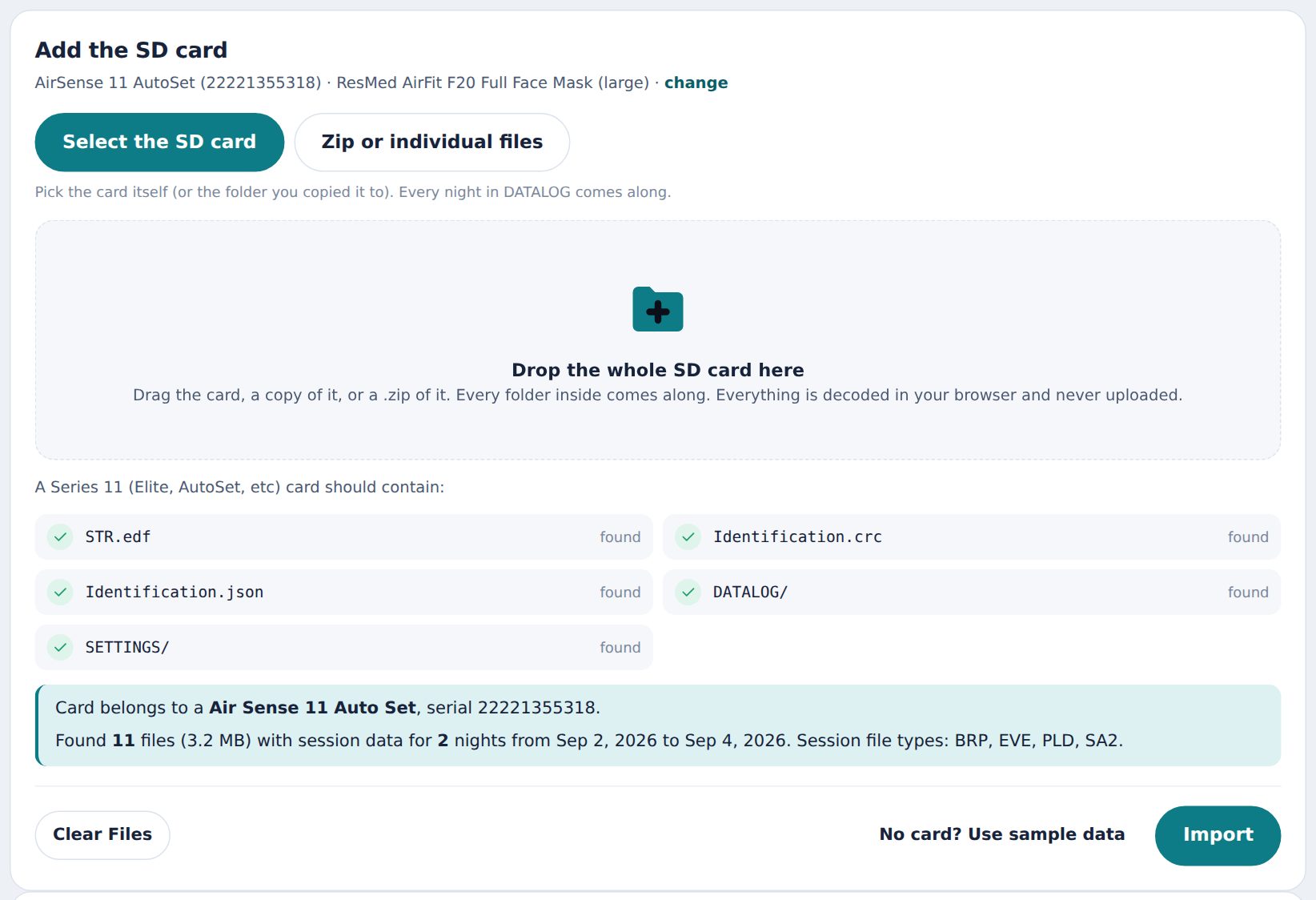
- In Import, click Select the SD card and choose the card itself, or the folder you copied it to. Or drag the whole card onto the drop area.
- Check the list: STR.edf, Identification, DATALOG and SETTINGS should all say found. The note below tells you how many nights were found and what file types are present.
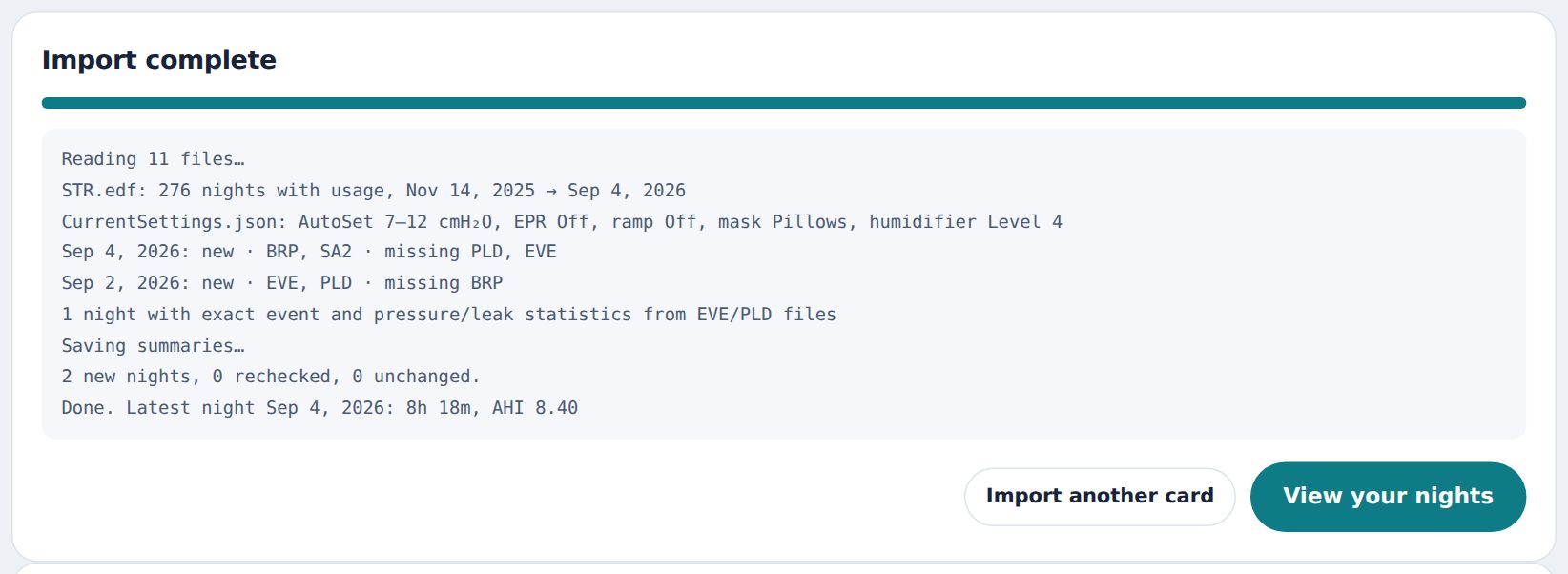
- Click Import. The log shows each night as it's read. The first import of a year's card takes a minute or two; every one after that takes seconds because unchanged nights are skipped.
What the files are
STR.edf: one line per night. Hours, AHI breakdown, leak and pressure percentiles, the settings that night. Required.DATALOG/YYYYMMDD/*_BRP.edf: your breathing flow, 25 times a second. The breathing chart.*_PLD.edf: pressure, leak, flow limitation, snore and breathing rate every two seconds. Those charts and the exact statistics.*_EVE.edf: the machine's event log. Exact event counts and the colored markers.*_SA2.edf: oxygen and pulse, when an oximeter is connected to the machine.
Import the whole card rather than picking files, so nothing is missing.
Moving from OSCAR or SleepHQ
Your history is not stuck anywhere. Both tools keep the card's own files, and Sleep Tally reads those.
From OSCAR
- OSCAR keeps a copy of every card it has read inside its profile folder: on Windows
Documents\OSCAR_Data\Profiles\<your name>\, on a Mac ~/Documents/OSCAR_Data/Profiles/<your name>/. Inside is one folder per machine, named after the machine and its serial number. - In Sleep Tally's Import, click Select the SD card and pick that machine folder (the one that contains
Backup). Or drag it onto the drop area. - OSCAR stores one
STR copy per month in Backup/STR_Backup. Sleep Tally reads all of them, so nights older than the card itself holds come along too. The import log says how many older nights were recovered.
Recent nights get their full waveforms; older nights keep the machine's nightly summaries (hours, AHI, leak, pressure), which is what trends, insights and reports use.
From SleepHQ
SleepHQ uploads the same card files. Import the SD card itself into Sleep Tally, or the folder its uploader app watches. Nights you tracked before the card was last wiped are only in SleepHQ; export them there if you need them, and keep importing the card from now on.
Keeping a copy
Settings → Export everything writes a backup file with every member's nights, notes, equipment and settings history. Restore from a backup file brings it back on any device. Nothing you type into Sleep Tally is locked in.
Import from a phone
Phones can read a card with a USB-C or Lightning card reader, but their browsers can't pick a folder. Zip the card instead.
- Plug in the reader with the card. Open the Files app and find the card.
- Long-press the card's folder and choose Compress. A .zip appears next to it.
- In Sleep Tally, tap Import then Select a zip of the SD card, and choose the archive.
- Tap Import. The zip is unpacked in your browser; nothing is uploaded.
Large cards: the phone keeps the most recent 120 nights' raw files for charts and the statistics for everything older, so a 600 MB card doesn't need to fit in memory at once.
Automatic import with the SubFive box
The SubFive box is a small box for the nightstand and a Wi-Fi SD card for your machine. The box reads the card while you sleep and sends every night to your account, with full breath-level detail. Nothing to pull out, nothing to plug into a computer.
Setting it up
- Take your machine's own SD card out and keep it. Put the Wi-Fi SD card from the box in the same slot.
- Plug the box in beside the machine. After about a minute its light blinks slowly.
- On your phone, scan the first QR code on the bottom of the box (or join the
SubFive Setup network in Wi-Fi settings). A page opens by itself: pick your home Wi-Fi, type its password, press Connect. The light goes solid. - Scan the second QR code, or open Import → Add a SubFive box, and enter the six-character code on the sticker. Choose which member it sends nights to.
Every morning
Sleep as usual. Most machines only power the card while therapy runs, so the box looks for the card's Wi-Fi every couple of minutes and reads it whenever it is there. The night fills in while you sleep and is complete by the morning. The box's row on the Import page shows when it last sent data and what it found; Read the card now asks for a read at any time.
The card you took out holds your past nights. Import it once from a computer and the box carries on from there.
Have your own Wi-Fi card and a computer?
A script on a computer near the bedroom can copy new files from an ez Share card into a folder, and Sleep Tally watches that folder: in Import, find Automatic import from a folder and choose it (Chrome or Edge on desktop).

Reading a night
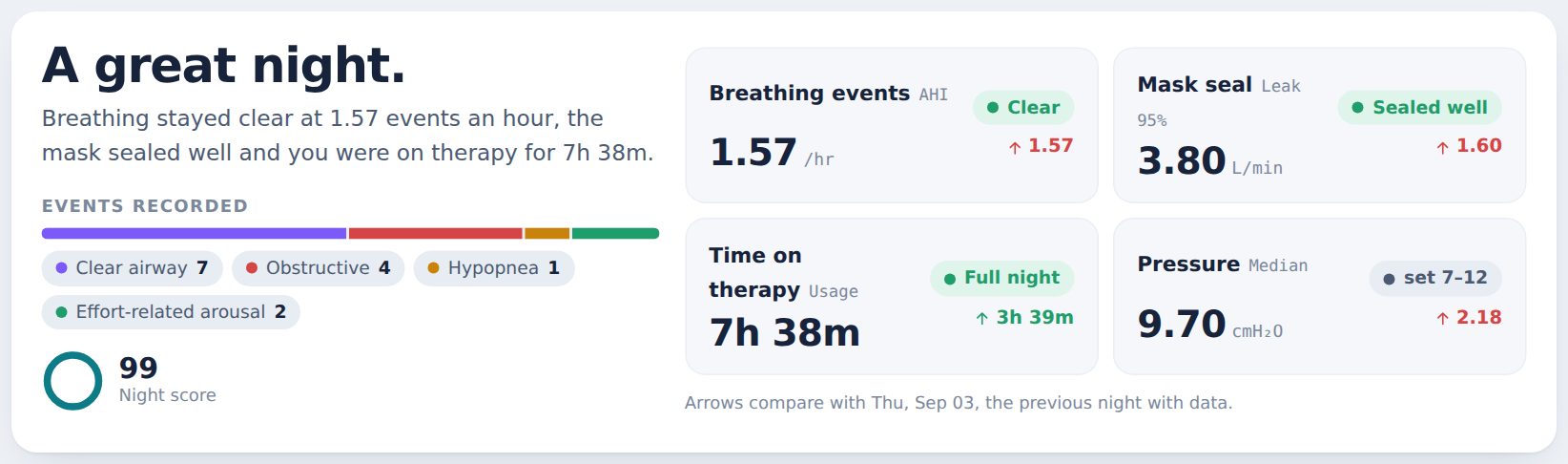
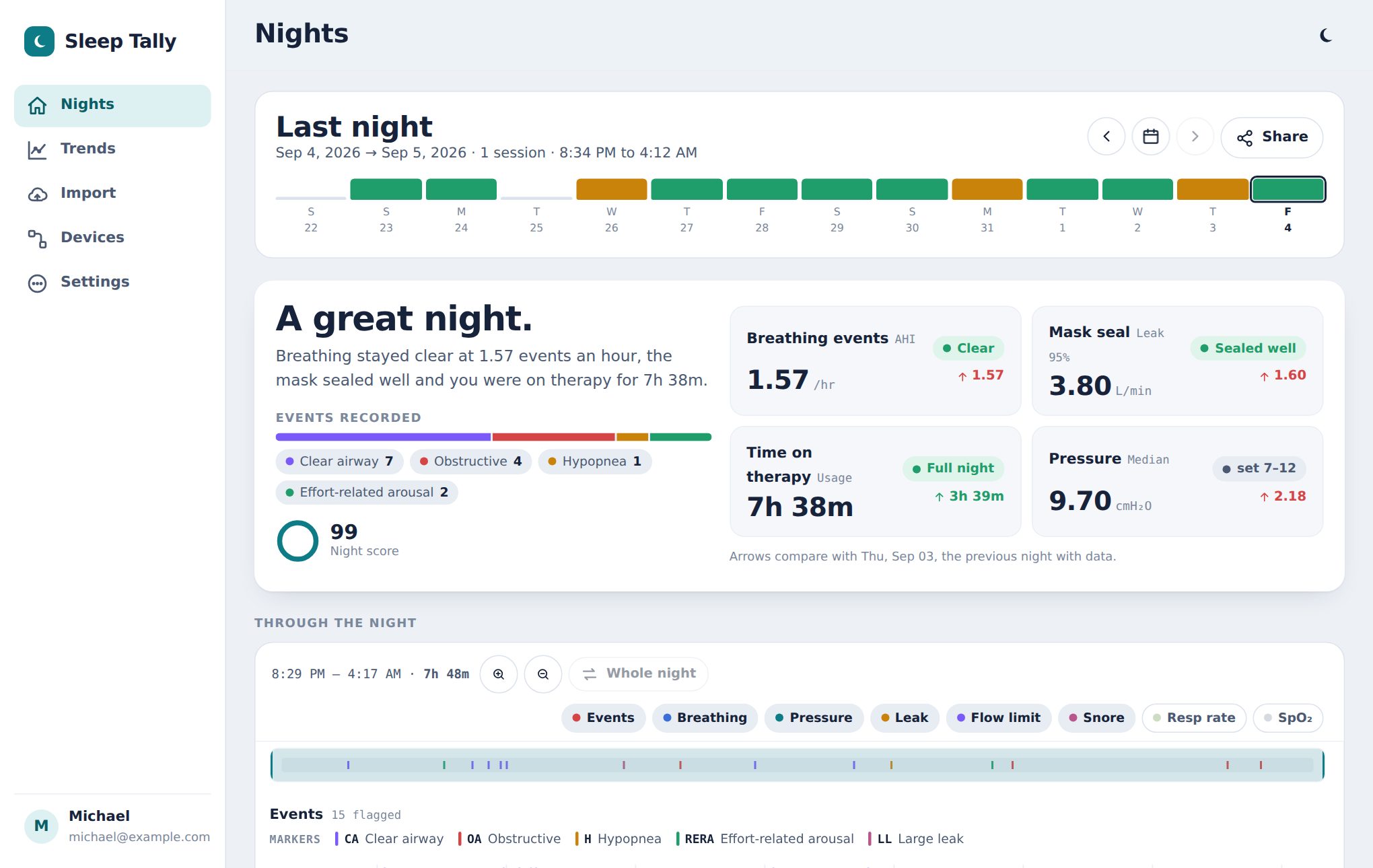
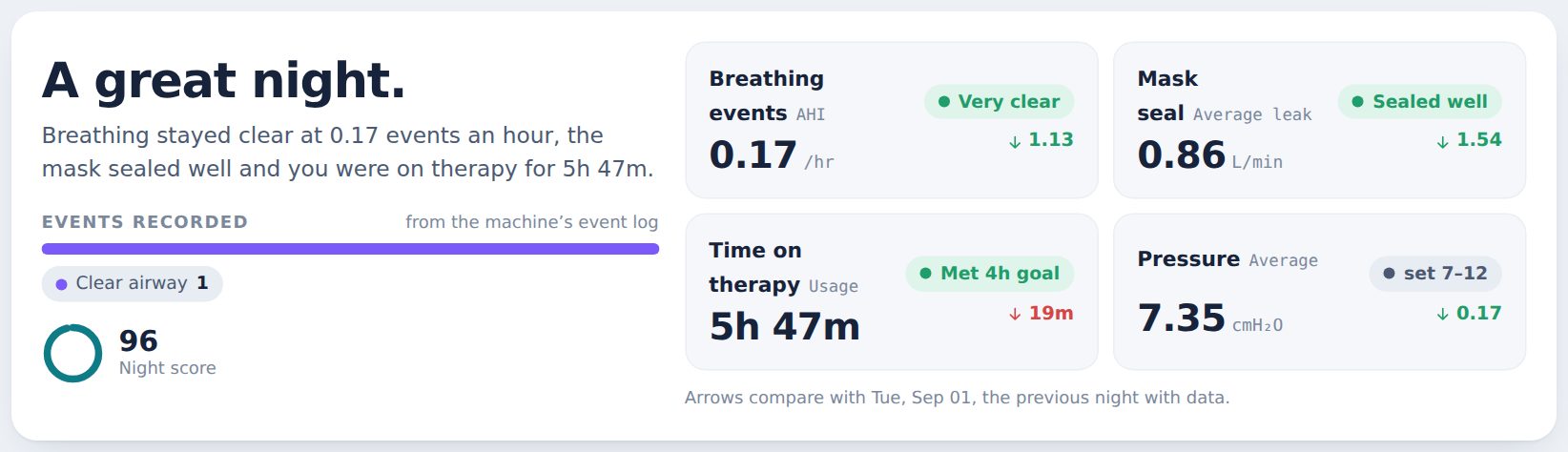
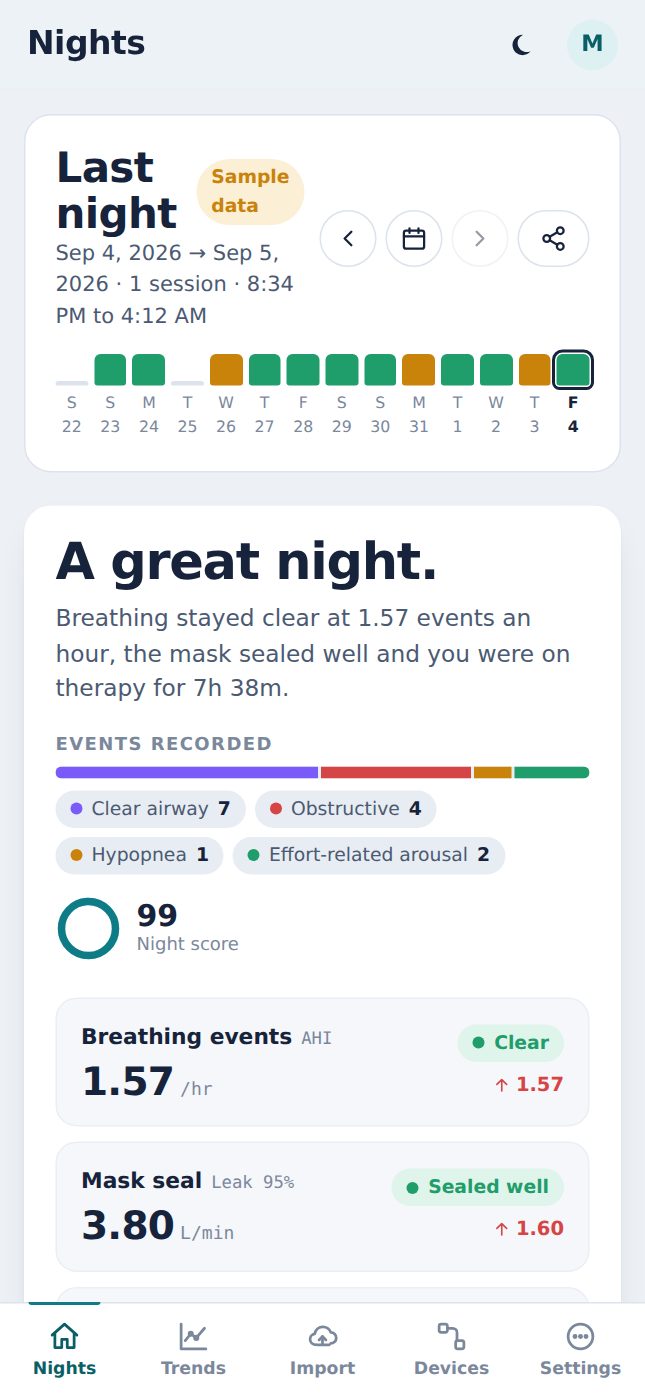
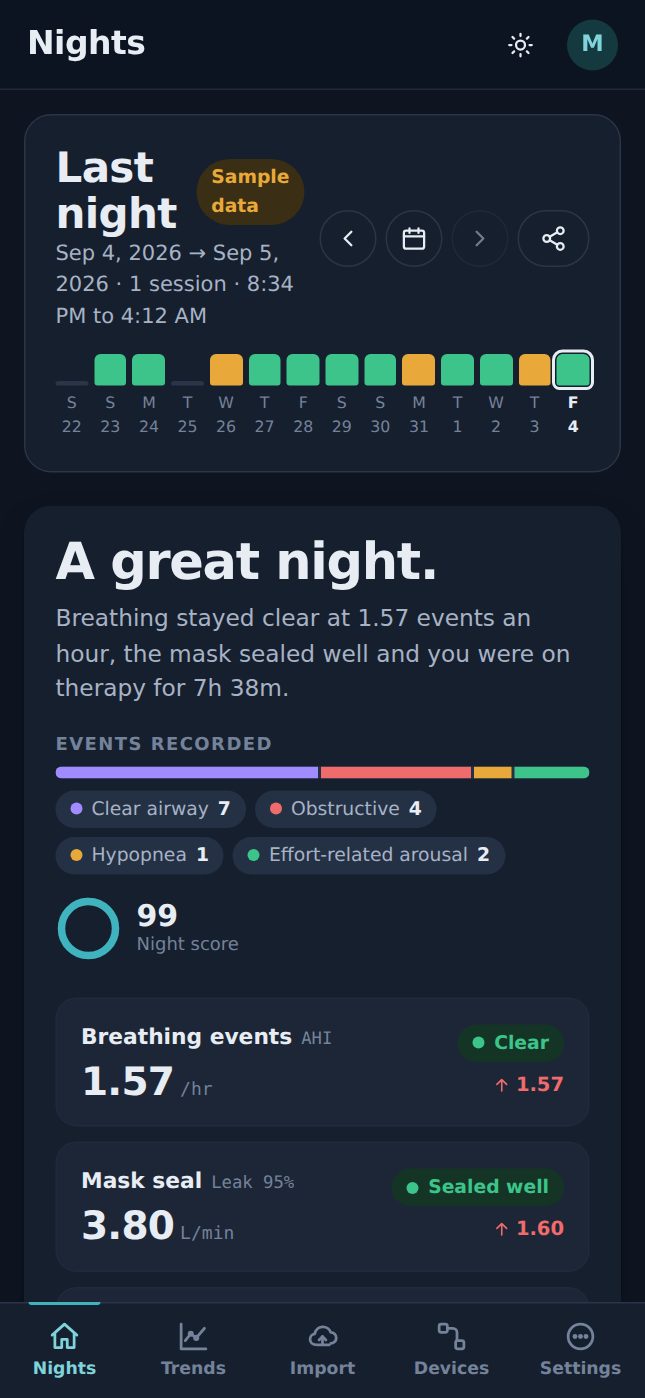
- The headline is one of four: great, good, okay, rough. It comes from breathing events, mask seal and time on therapy.
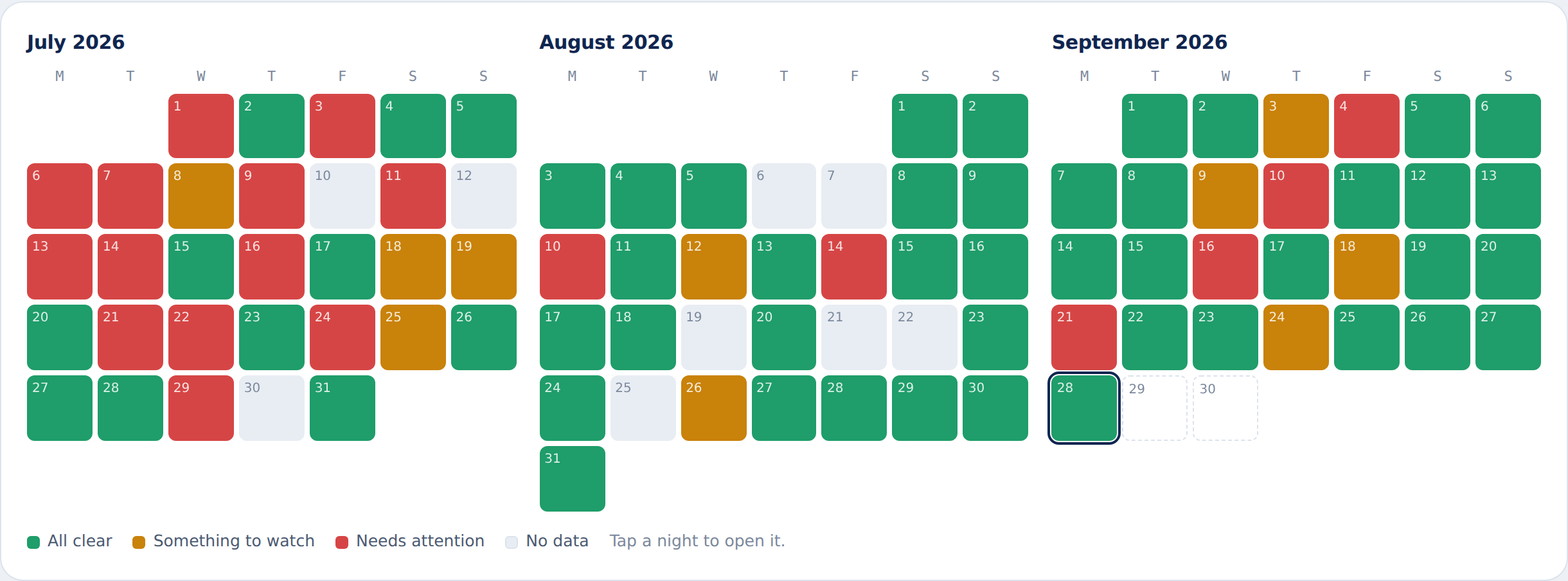
- The colour of a night, on the calendar and the night strip, follows the apnea first. Red is an AHI of 10 or more, double the under-5 goal of treated apnea, or a machine that was not used. Amber is an AHI between 5 and 10, fewer than four hours of use, or a mask leak at ResMed's 24 L/min line, because those are things to fix rather than the apnea itself. Green is everything else. The night score weighs breathing events twice as much as seal and hours, and is capped when breathing needs attention.
- The sentence says why, in numbers.
- Events recorded lists each event type that occurred, with a count. Exact when the night's event log was on the card; marked ≈ when estimated from hourly rates.
- Breathing events (AHI): apneas and hypopneas per hour. Under 5 is the usual treatment goal. Clear, Elevated or High.
- Mask seal (Leak): average leak, with the 95th percentile in the statistics table. Sealed well under 8 L/min at the 95th; Large leak above 24.
- Time on therapy: hours the mask was on. 4 hours is the common insurer minimum; 6 or more is a full night.
- Pressure: average set pressure, with your prescribed range beside it.
- Arrows compare with the previous night that has data. Green is the direction you want.
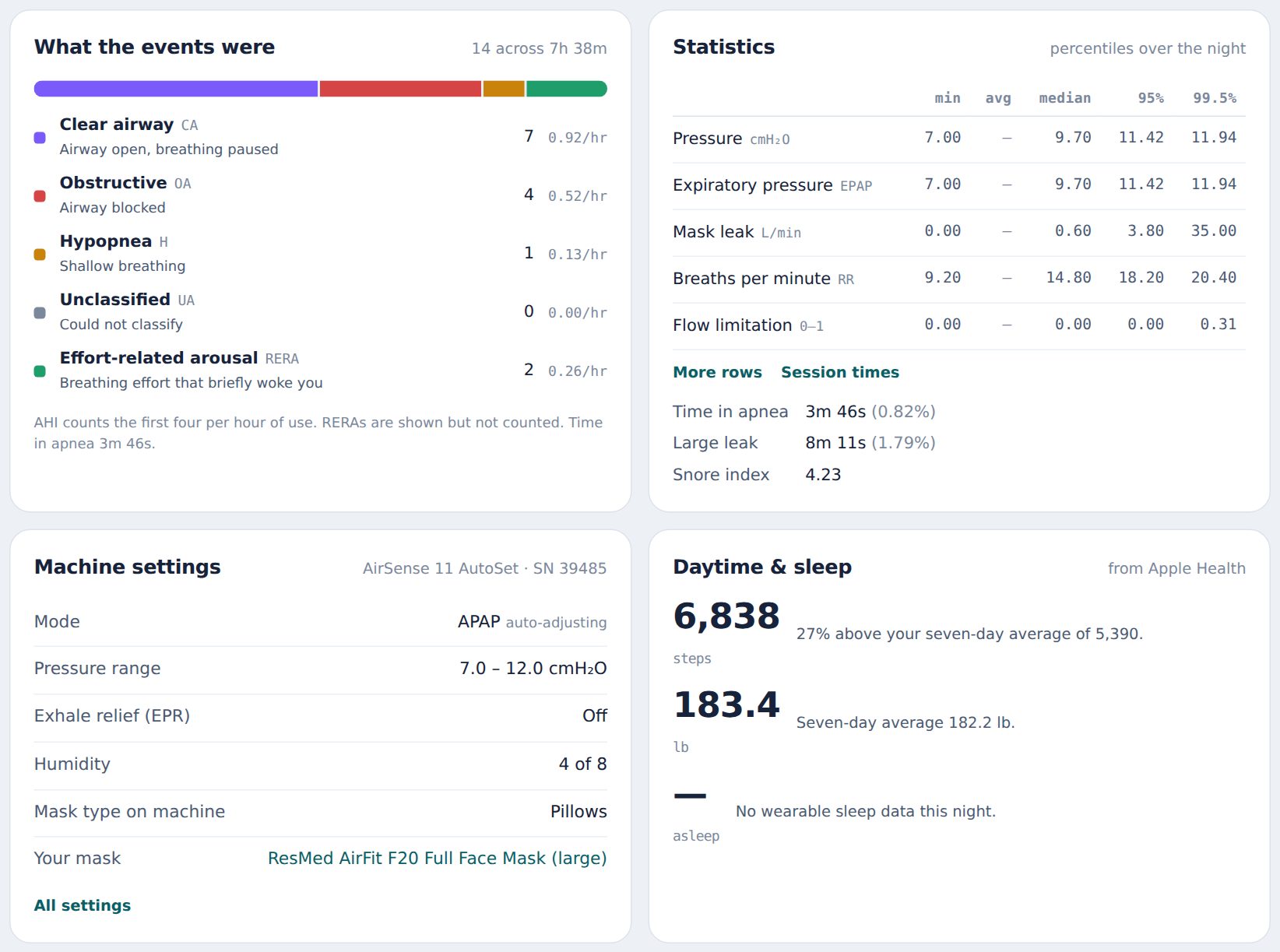
Event types
- Clear airway (CA): airway open, but breathing paused.
- Obstructive (OA): airway blocked.
- Hypopnea (H): shallow breathing.
- Unclassified (UA): the machine couldn't tell.
- Effort-related arousal (RERA): breathing effort that briefly woke you. Shown, not counted in AHI.
Charts and zooming
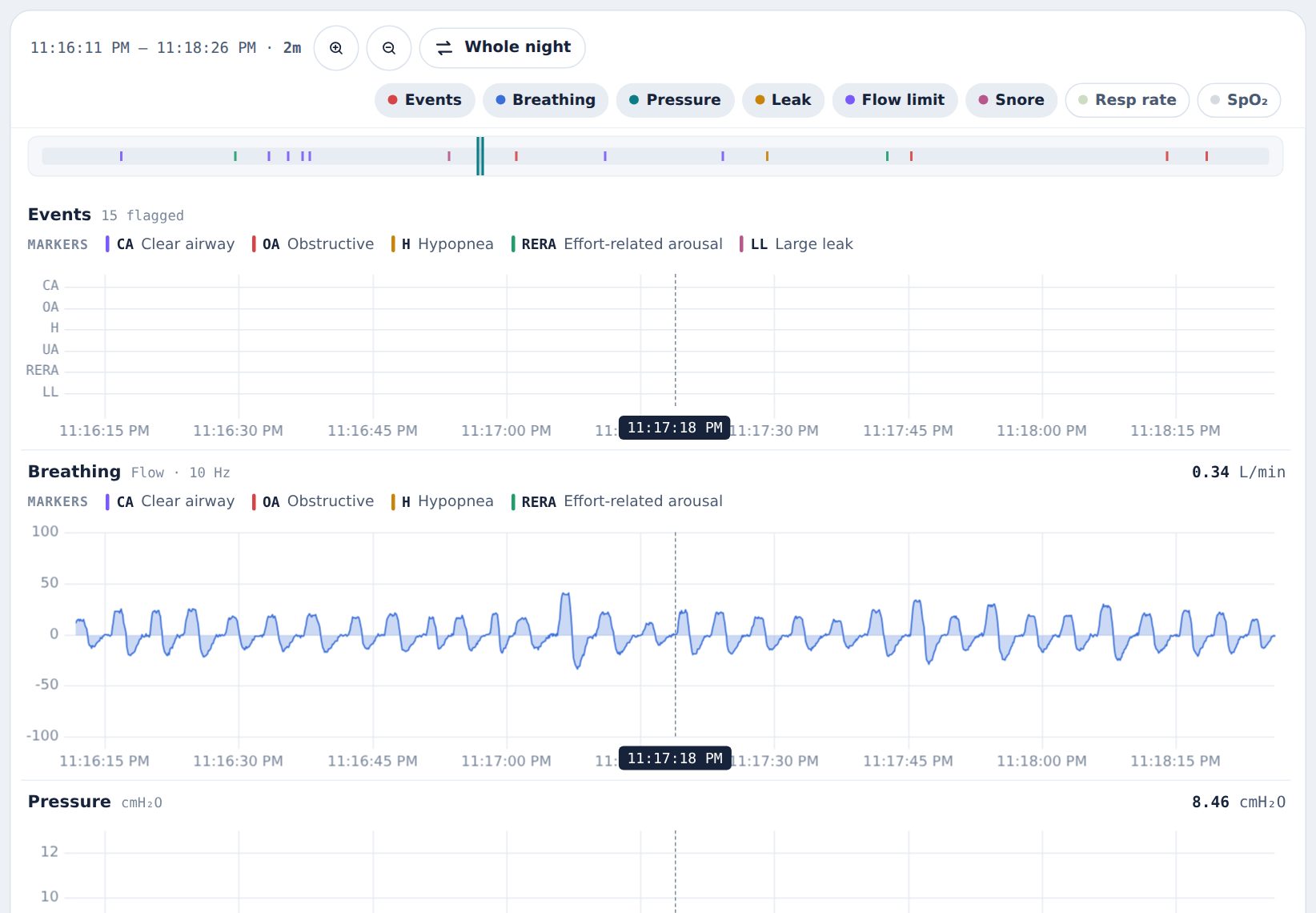
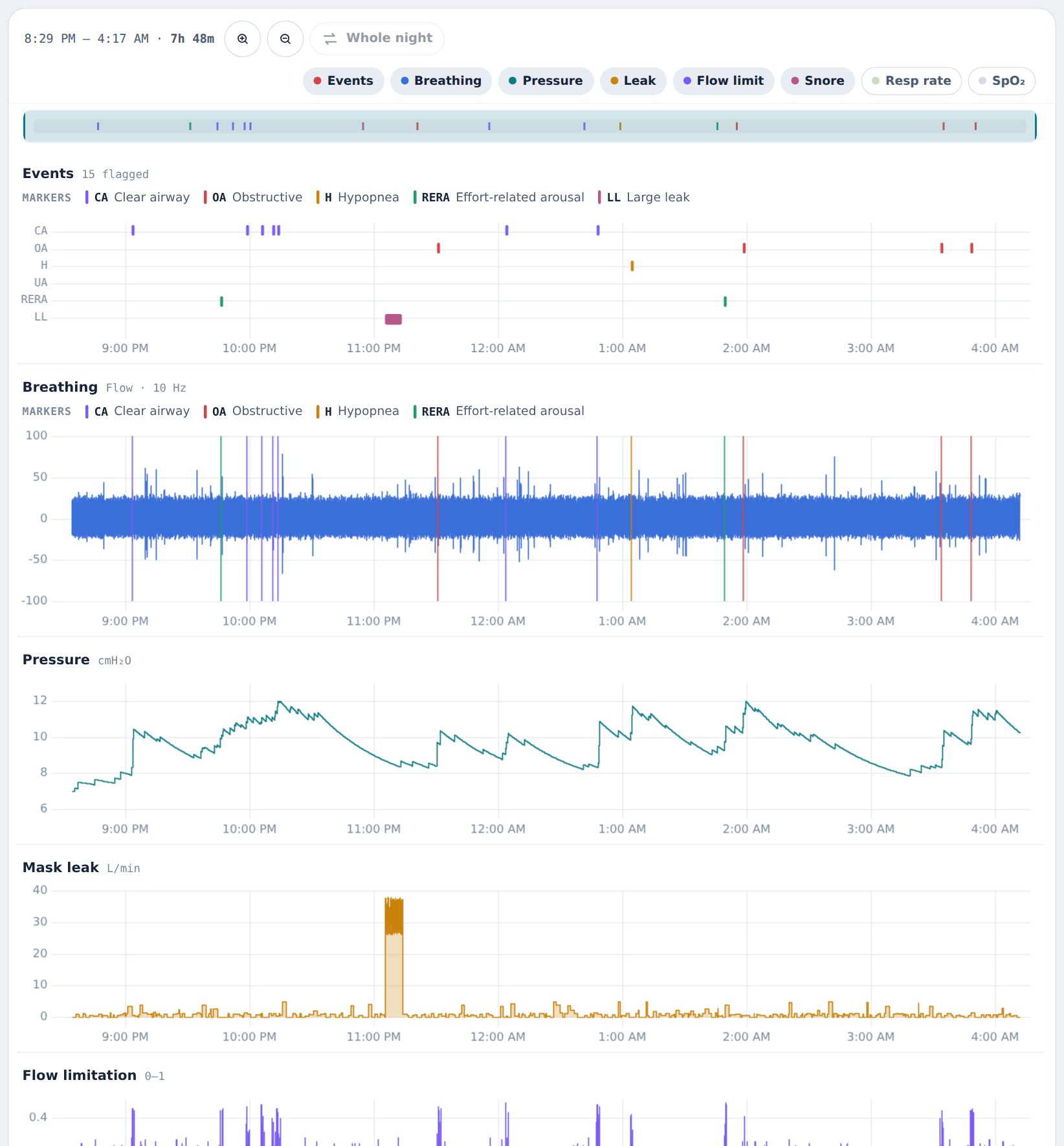
- Drag across any chart to zoom into that stretch. Do it again to go deeper. Every chart follows.
- Scroll over a chart to zoom at the pointer. Shift-scroll to pan. Double-click for the whole night.
- The overview strip above the charts shows the whole night with your window as a band. Drag the band to move; click elsewhere to jump.
- The toolbar stays pinned while you scroll. It shows the visible window and its length, zoom buttons, Whole night, and chips to show or hide charts.
- Hover to read the exact value in each chart's header. When zoomed under twenty minutes the axis shows seconds.
- Markers: colored lines on the breathing chart are flagged events. The legend above the chart names them; zoom in and each one is labeled.
Arranging the charts
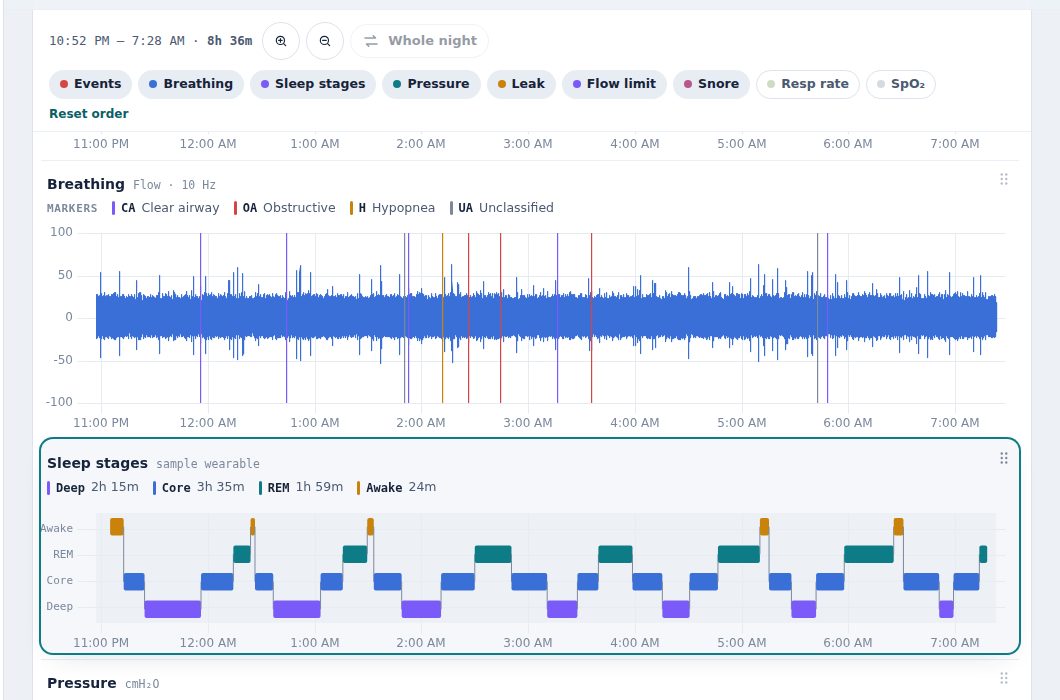
The chart stack is yours to order. Some people want leak right under breathing; others want sleep stages on top of everything.
- Find the grip (six dots) at the top right of any chart.
- Drag it up or down. The chart lifts, the others move out of the way, and it drops where you let go. This works with a mouse or a finger.
- Prefer the keyboard? Click or tab to the grip, then use the arrow keys to move one step, or Home and End for the top and bottom.
The order is remembered on that browser and applies to every night. Reset order, next to the chart chips, puts everything back. Hiding a chart with its chip doesn't change the order; it just skips it until you turn it back on.
Trends and the calendar
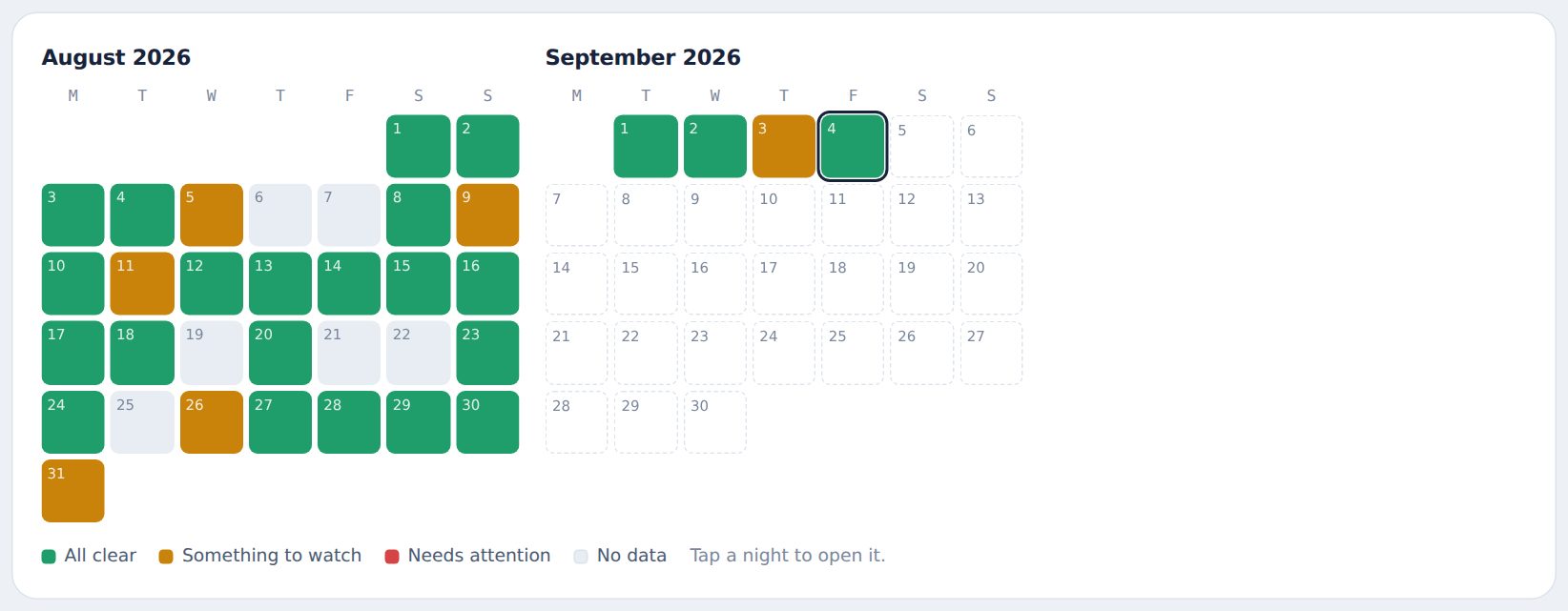
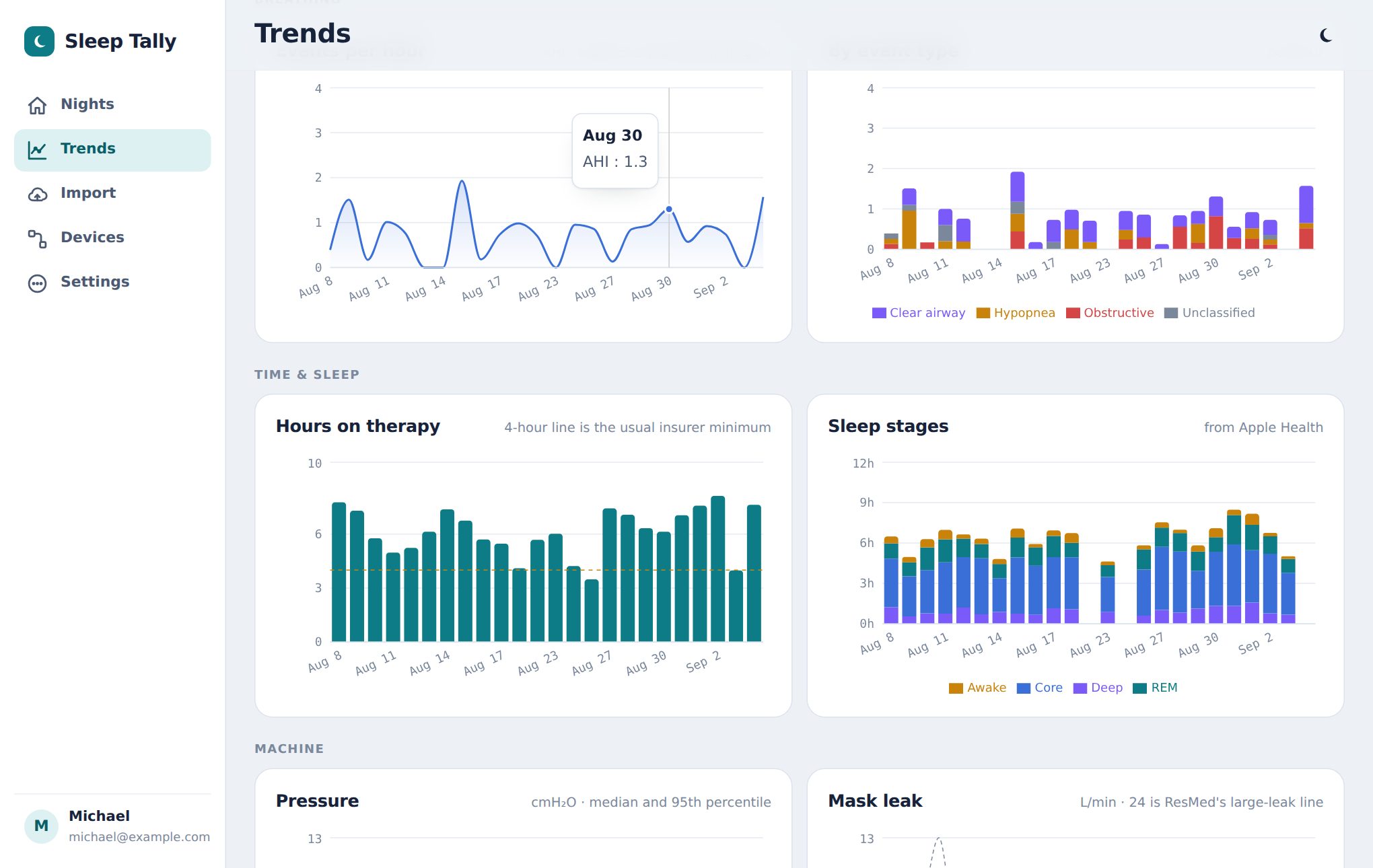
Pick a range at the top: 7, 30 or 90 nights, this year, or all. The calendar colors each night green, amber or red by how it went; empty squares are nights without data. Tap a square to open that night. Below are trends for events per hour, event types, hours on therapy against the 4-hour line, pressure and leak.
Sharing with a clinician
Share links work at the account level, so you can give each person their own. Press Share on any night or on Trends, or open Settings → Share links.
- Name the link after who it's for: "Link for Dr Patel", "Sleep clinic follow-up", "Forum helper".
- Choose what it shows: all nights, the last 90 or 30, or just the night on screen. Untick machine settings if you'd rather not share them.
- Choose when it stops working: never, or after 7, 30 or 90 days or a year. Good for a one-off appointment.
- Create link. It's copied to your clipboard; paste it into an email or message.
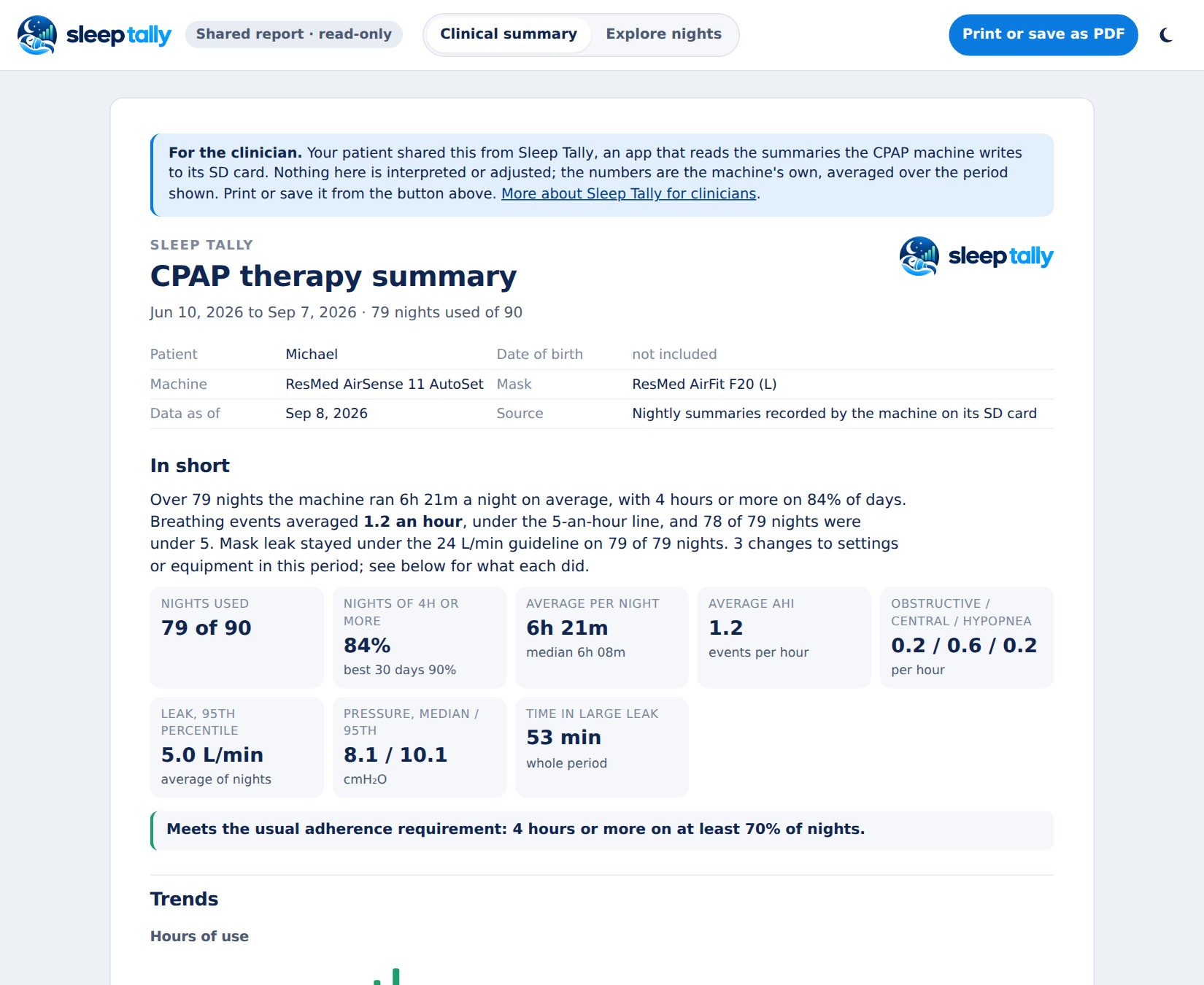
Whoever opens it sees a read-only report with no login: nights at a glance, trends, each night's verdict, event breakdown, statistics and settings, and a night-by-night table. It carries no name, email or serial number.
Managing your links. Every link you have made is listed under Settings → Share links with who it's for, what it shows and when it expires. For each one you can preview it, copy it again, rename it, change or remove its expiry, update it with your latest nights, or revoke it so it stops working immediately. Revoking one link never affects the others. Expired links stay in the list marked expired until you delete them, so you can see what you handed out.
Hosted links update themselves after every import, so a clinician who keeps the link always sees your latest nights. Each member of the account has their own set of links.
Members on one account
One subscription covers everyone in your household who uses CPAP. Each member has their own machine, nights, trends, settings, Apple Health data and share links, kept completely separate. There is no limit on members and no extra charge.
- Open Settings → Members (or click your name at the bottom of the sidebar) and choose Add a member.
- Enter their name. An email is optional; it's for their own sign-in later.
- Sleep Tally switches to the new member and opens Import. Put their SD card in and import it as usual.
Switching. Click the name at the bottom of the sidebar (the avatar in the header on a phone) to see everyone on the account and switch with one tap. Every page, from the night view to Trends to share links, then shows that member's data.
Managing. Under Settings → Members you can rename a member, add an email, or remove them. Removing a member deletes their imported nights and turns off their share links; nobody else on the account is affected.
Other apps charge extra for this. SleepHQ only lets you add people on its higher-priced plan; Sleep Tally includes everyone in your household in the one price. Fair use applies: an account is for one household, with room for up to six members and six machines. Bigger household, or a clinic? Write to support@sleeptally.com. A machine can belong to one account at a time.
Reports for insurers and doctors
Reports in the left menu builds three documents from your nights, each previewed on screen and saved as a PDF through your browser's print dialog.
Compliance report. What insurers, equipment suppliers and clinics ask for: days used, nights with 4 hours or more, the percentage, hours per night, a usage chart against the 4-hour line, average AHI, leak and pressure, the settings in force, and a night-by-night table. A 90-day report also picks out the best consecutive 30 days, which is the window most insurers look at.
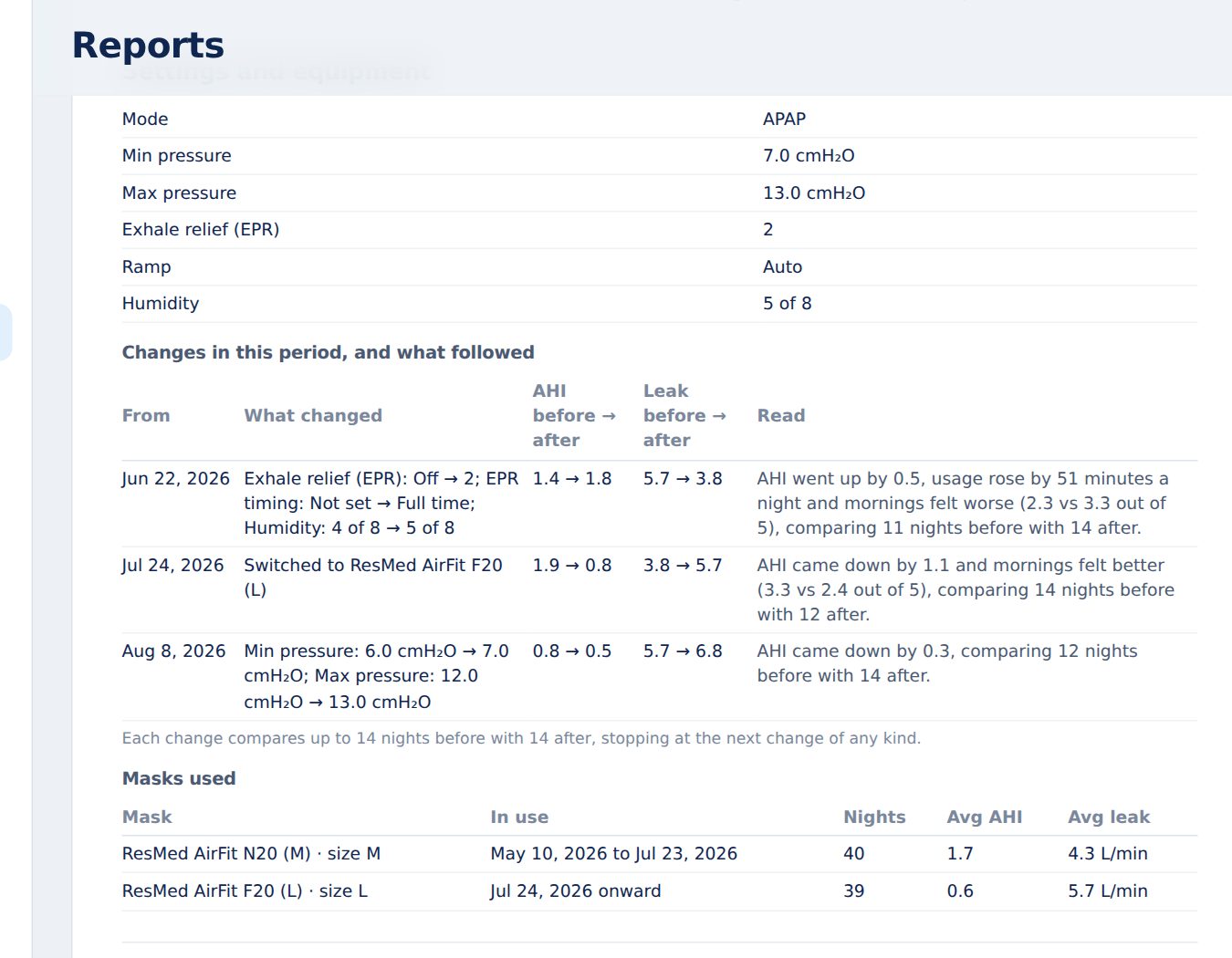
Therapy summary. For a doctor's visit: a plain-language overview, then trends for AHI, usage, leak and pressure, the event mix with what each type means, the settings and mask changes in the period with the effect on AHI, and a summary of your morning notes (feelings and tags; the text itself only if you tick the box).
One night in full. The verdict, every metric and statistic, the settings and mask, breathing-event positions, and printable charts for breathing, pressure, leak, flow limitation, snore, breathing rate and, when a watch or oximeter recorded them, oxygen and pulse.
Name and date of birth appear on reports because insurers expect them; set them under Settings → Account. Nothing in a report is sent anywhere until you choose to share the PDF.
Morning notes
Under the night's verdict there is a Morning notes card. Pick how you feel (Exhausted to Great), tap what was different (alcohol, a late meal, a cold, a new cushion, travel, or a tag of your own), and write anything worth remembering. It saves as you type; there is nothing to submit. Nights without machine data get a notes card too, so you can record why the machine stayed off.
Settings → Morning notes lists every note newest first, with search and your most-used tags, and each one opens its night. Notes are private to your account and are never included in share links.
Machines, masks and reminders
Open Devices and tap your machine or mask, or go straight to Machines & masks from Settings. It keeps four things for each member.
Machine. Model and serial number come from the SD card. Add a nickname and the date you bought it. Its card shows nights, total hours, hours per night and the first night on record.
Settings changes. Every night on the card records the settings the machine was running, so Sleep Tally notices when they change and lists each change on a timeline: the date, what changed (say, Min pressure 6.0 → 7.0 or EPR Off → 2), and what happened next. For each change it compares up to two weeks of nights before with two weeks after and shows AHI, leak and hours per night side by side, with a one-line read such as AHI came down by 0.4 or No real difference. The strip at the top shows the settings in place right now and how long they have been there. Nothing here changes your machine; it only reports what your machine already did, so you and your clinician can see whether a tweak actually helped.
Masks. Add a mask by picking the brand, type (full face, nasal, nasal pillows) and model from the list, or type one that isn't listed, then the size, when you started using it, and an optional nickname and purchase date. Every night is matched to whichever mask was in use, so each mask card shows its own average AHI, average leak, average pressure, time per night, time in large leak and total time. When you switch masks, press Switched to a new mask: the old one is retired the day before and its numbers stay put, so you can compare the two honestly. The mask with no end date is your usual mask, and every night is assumed to be on it. Wore a different one? Tap the mask name at the top of that night and pick it; the choice carries forward to the nights after it until you pick again, so a switch is recorded once, not every morning. Switching for good? Pick the new mask on the first night you wore it, then choose Make it my usual mask from this night on: its start date moves to that night and the old mask ends the night before.
Consumables and reminders. Cushions, filters, tubing, water chambers and headgear wear out on a schedule. Add each one with the date you bought it and how often to replace it (the usual intervals are filled in), and Sleep Tally shows Due in 12 days or 3 days overdue. Press Replaced today when you swap it.
Your account
Signing up. Press Start free for 30 days, enter your name, email and a password, and confirm the email we send. There is no card to enter. From then on your nights, equipment, Apple Health days and share links sync to your account, so you can open Sleep Tally on your phone, laptop or a clinic computer and see the same thing. You can also sign in with a one-time link sent to your email if you prefer not to type a password.
Plans. After the free 30 days, Sleep Tally is $10 a month or $85 a year, with everything included and unlimited members. Open Billing & plan from Settings, or by pressing your email in the sidebar. It shows the plan in force and lets you choose monthly or yearly, switch between them (the unused part of the current period is credited), update your card, download invoices or cancel; after cancelling you keep access until the period you paid for is over. Payment is handled by Stripe and Sleep Tally never sees your card number. Subscribe during the trial and you are not charged until it ends. When a trial or subscription ends you can still look at everything you imported; only importing new nights waits for a plan.
Under Settings → Account you can change the name and email of the member you are viewing, the timezone nights are labelled in, and whether weight shows in pounds or kilograms.
Deleting the account. At the bottom of Settings, Danger zone → Delete account removes every member, every imported night, Apple Health data, equipment and share links from your account and this browser, turns off every share link, and deletes your sign-in. You type delete to confirm, and there is no undo. Cancel any subscription first under Manage billing. Your SD card and the Health app are untouched, so you can start again later if you change your mind.
Apple Health and sleep stages
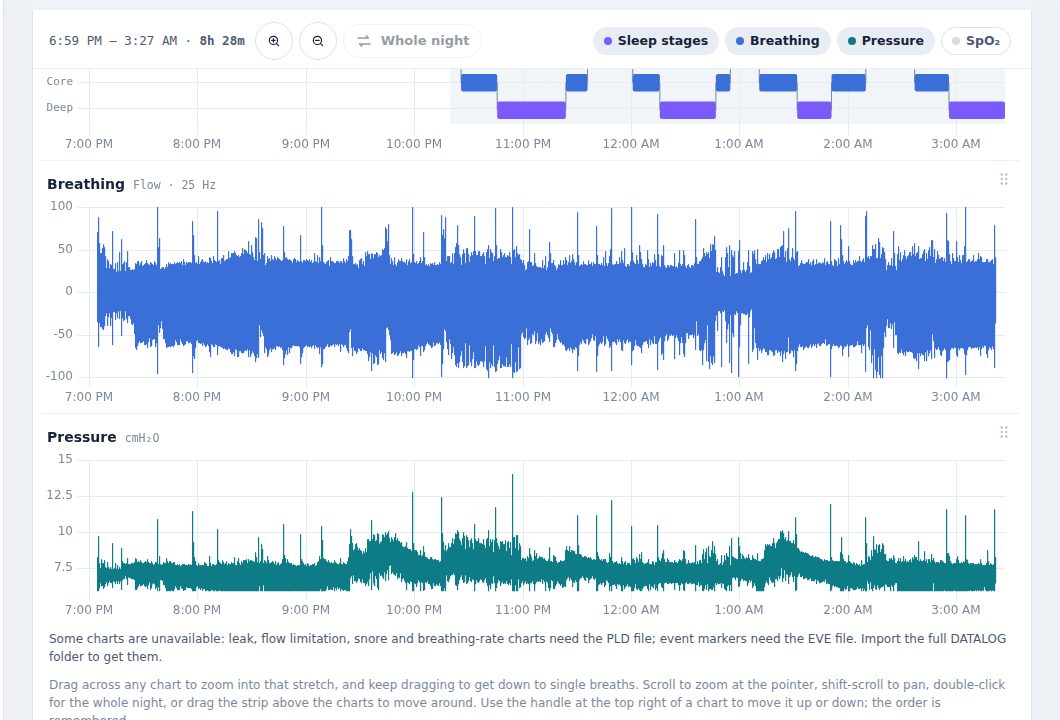
Sleep stages from an Apple Watch sit on the same time axis as the breathing chart, so you can see whether a run of events fell in REM, or whether the awake stretch at 2 AM matched a leak. Steps, weight and resting heart rate appear in the Daytime card, and sleep stages join the Trends page.
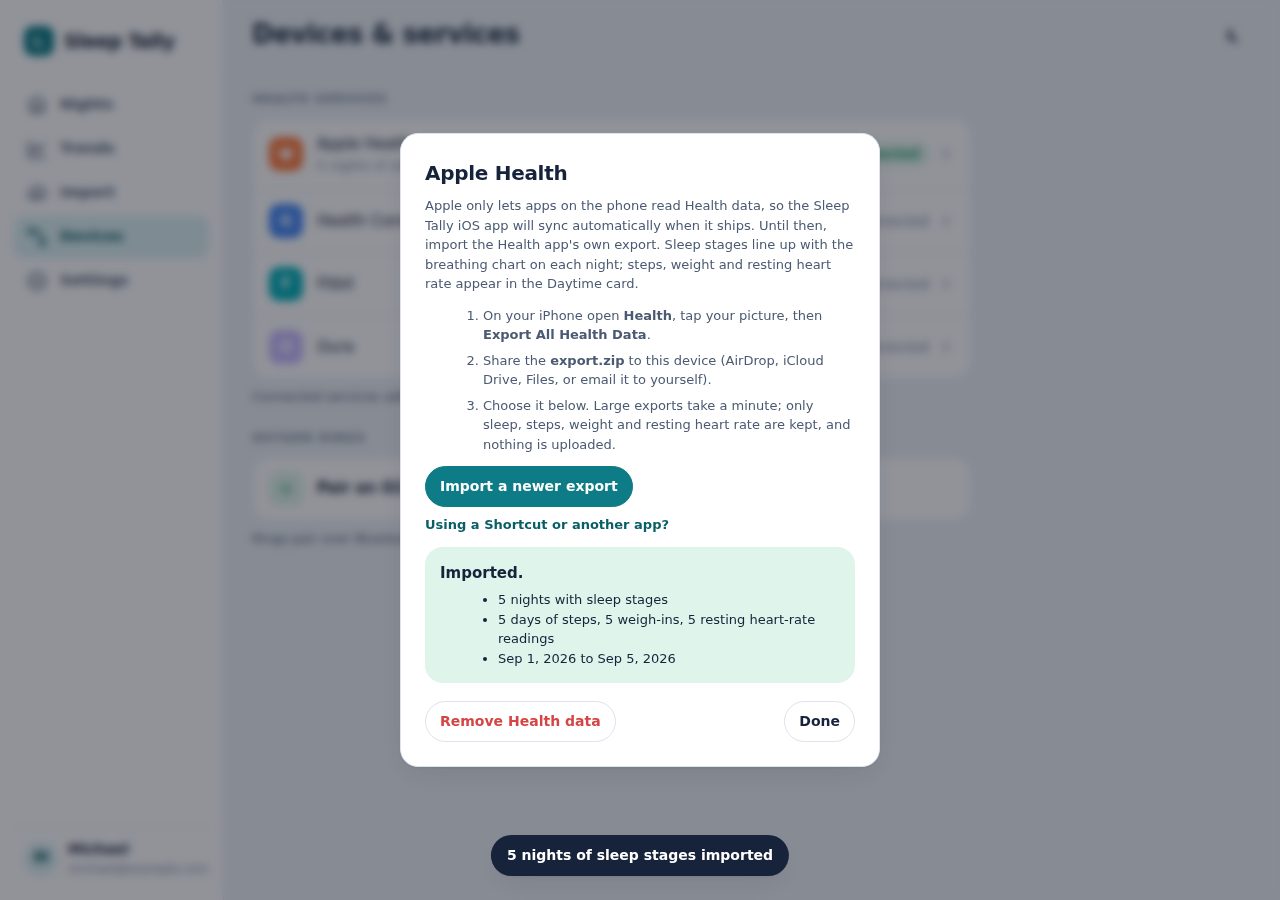
Why an export? Apple only lets apps on the phone read Health data. The Sleep Tally iOS app will sync automatically when it ships; until then the Health app's own export does the job in about two minutes.
- On your iPhone open Health, tap your picture (top right), then Export All Health Data and confirm.
- Share the export.zip to the device you use Sleep Tally on: AirDrop to a Mac, save to iCloud Drive or Files, or email it to yourself. If you use Sleep Tally on the phone itself, just save it to Files.
- In Sleep Tally open Devices, tap Apple Health, then Choose export.zip and pick the file.
- Wait for Imported. Big exports (years of heart-rate readings) take a minute; the file is read as a stream, only sleep, steps, weight and resting heart rate are kept, and nothing is uploaded anywhere.
Every night the Watch recorded now shows a Sleep stages chart, above Breathing by default: deep, core, REM and awake as coloured bars, the in-bed span shaded behind, totals in the header, and the stage under your pointer named as you hover. Zoom, scroll and drag work like any other chart, and you can move it wherever you like.
Keeping it current. Repeat the export whenever you want recent nights added. Nights already imported are kept, so a fresh export only fills in what's new. Remove Health data in the same dialog takes it all out again.
Automating it. A CSV of start,end,stage rows imports the same way (stages: awake, core, deep, rem, asleep, inBed), so an iOS Shortcut using Find Health Samples → Sleep, or an app such as Health Auto Export, can write one every morning into the folder you already watch for card files. A second layout, date,steps,weight_kg,resting_hr, covers the daytime numbers.
The Watch needs Sleep Focus (or a sleep schedule) turned on and must be worn overnight to record stages. Nights without stages simply show no chart.
Devices and services
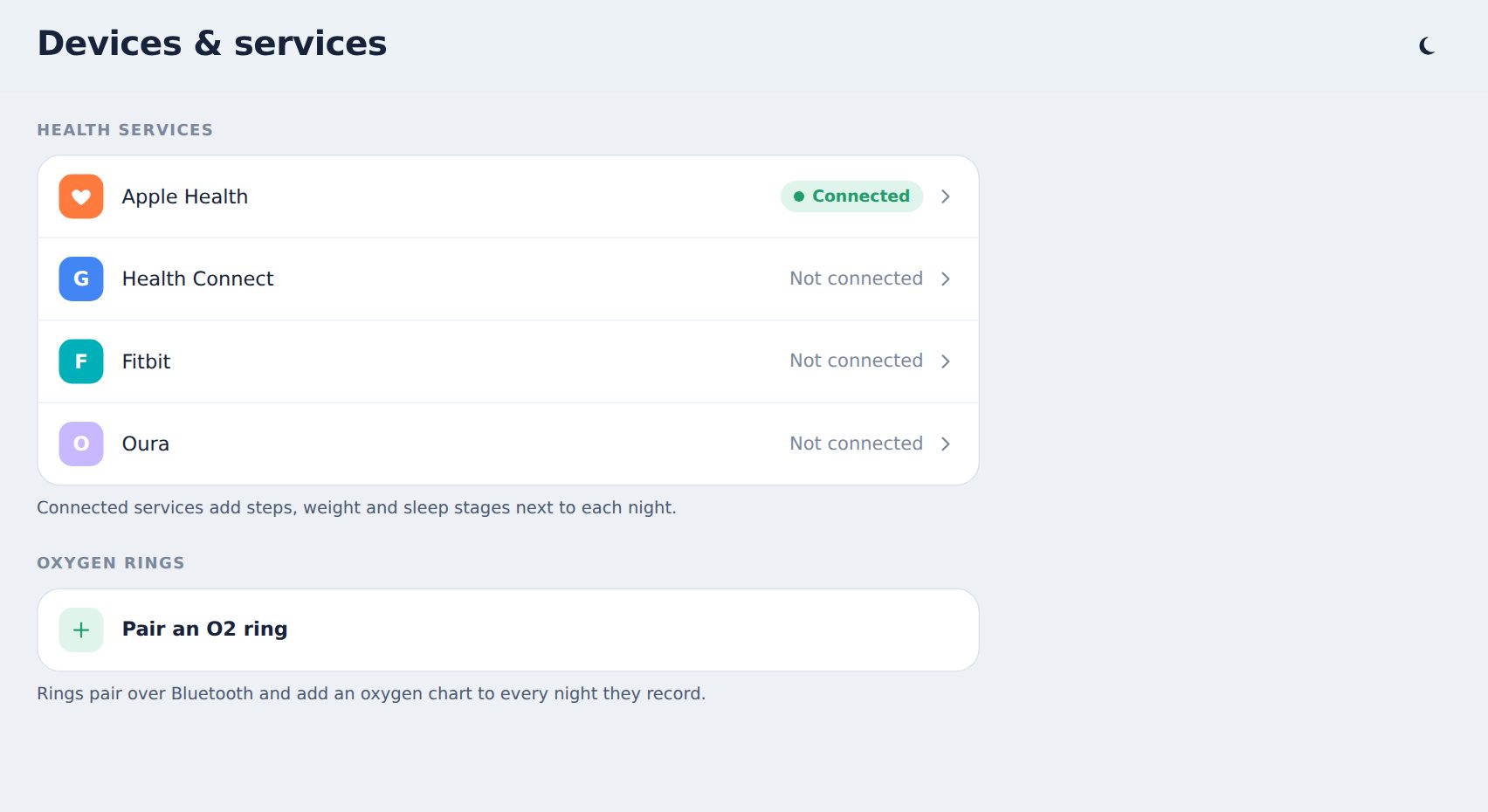
Apple Health works today through the Health app's export. The step-by-step is in Apple Health and sleep stages.
Health Connect, Fitbit and Oura are planned; their rows on the Devices page show the intent and don't sync anything yet. Wellue and Viatom O2 rings sync over Bluetooth from Chrome or Edge on a computer or Android phone (Devices → Sync a ring), automatically from a SubFive box each morning, or by importing the CSV their app exports.
Your data and privacy
- Card files are decoded in your browser. What they contain is stored on the device and in your private account, so the same nights open on your phone, laptop or a clinic computer.
- Charts download on demand: a night imported on one device fetches its session files from your account the first time you open it elsewhere, then keeps a local copy.
- Settings → Export everything writes a full backup you can restore on any device; Export CSV writes every night's summary. Delete account removes everything from your account and this browser.
- Sample nights are labeled "Sample data". Nights decoded from your card say "From your card". The app never generates data for a real night that's missing; it tells you what happened and what to do.
Troubleshooting
"STR.edf is required"
You picked a sub-folder or a handful of files. Pick the card root, the folder that contains STR.edf and the DATALOG folder, or zip the whole card.
Some charts are missing for a night
The note under the charts says which file is missing. Leak, flow limitation, snore and breathing rate need that night's PLD file; event markers need the EVE file. Import the full DATALOG folder to get them.
A night says it is fetching, never uploaded, or not on this device
Your imports are recorded in two parts: the record of which nights a card covered, and the nights themselves. When the app finds the record but not the night, it asks your account for it first. Couldn't reach your account means the night is there but the download failed; check your connection and press Try again. Never finished uploading means the device that imported the card was closed before the night went up; import the card again on any device and it syncs everywhere. Not on this device only appears when you are not signed in, because without an account a night lives only in the browser that imported it.
My numbers differ slightly from another app
Different apps report different statistics. Sleep Tally shows average leak and average set pressure on the tiles and the median and percentiles in the table. AHI is computed from the event log when it's present and otherwise from the machine's one-decimal daily figure.
I can't pick a folder on my phone
Phone browsers don't allow it. Zip the card in your Files app and choose the zip.
My watch's night sits an hour off the mask time
The card records the machine's clock with no zone, so Sleep Tally reads those times in the member's timezone under Settings, on every device and on a SubFive box. Watch data carries its own zone. If the two sit an hour apart, the night says so under its numbers: usually the machine's clock did not move with daylight saving, or the timezone in Settings is not where the machine is. Fix the clock on the machine or the zone in Settings; nights already imported are read again on the next import.
The night starts an hour before I put the mask on
Sleep Tally shows the time the machine wrote, so a start time that is an hour off means the machine's own clock is an hour off, usually because it was not moved for daylight saving. On a ResMed machine the clock is set in the clinician menu (hold the Home button and the dial together for a few seconds, then look for date and time). Nights already recorded keep the machine's time; nights after the change are right.
Automatic import stopped
Browsers sometimes ask again for folder access after a restart. Open Import and click Check now. If the folder moved, choose it again.
FAQ
Which machines are supported?
ResMed AirSense 10 and 11 and AirCurve 10 and 11 today. Philips DreamStation 1 and 2 are next, then Löwenstein Prisma and Fisher & Paykel SleepStyle. The import screen lists current support.
Is this medical advice?
No. Sleep Tally shows you what your machine recorded, in plainer language, and the Analysis page explains what the medical literature says those patterns may mean. It never diagnoses and never tells you to change a setting or a medication. Decisions about your therapy belong with your clinician; the analysis, the questions it suggests and the share link exist to make that conversation easier.
How is this different from my machine's app?
Manufacturer apps show a score built mostly from hours used. Sleep Tally shows the events, the leak, the pressure and the breathing itself, and explains them.
How is this different from OSCAR?
OSCAR is free desktop software with great depth and a clinical interface. Sleep Tally runs in a browser on any device, opens with a plain-language verdict, and keeps the depth underneath. Many people use both.
Does it work offline?
Once loaded, yes: decoding and charts don't need a connection. Loading the app and creating share links do.
Can I use it for two people?
Yes. One account includes two profiles, each with their own machine and nights.
Can I change the order of the charts?
Yes. Drag any chart by the grip at its top right, or focus the grip and use the arrow keys. See Arranging the charts.
Where's the Apple Watch data?
Import the Health app's export under Devices → Apple Health (see Apple Health and sleep stages). Sleep stages then appear as a chart next to the breathing chart on every night the Watch recorded, and steps, weight and resting heart rate sit in the Daytime card. The iOS app will sync this automatically when it ships.
What about oxygen?
Three ways. If an oximeter is connected to the machine, its SA2 file already imports. An O2 ring (Wellue O2Ring, Checkme O2, SleepU and the like) records to itself: export the night from the ViHealth app as a CSV and import it under Devices, and oxygen and pulse join the night's charts, the verdict gets an Oxygen status, and the therapy check gains desaturation counts and hypoxic burden. An Apple Watch's readings arrive through the Health export, minutes apart rather than every few seconds.
When does the box read the card?
Every two minutes while the card's Wi-Fi is in the air, which is while the machine runs and for a while after it stops: the night fills in as you sleep, and the read that follows the machine stopping carries the end of the night and the summary the machine writes then, within about three minutes. A night opened in the first minutes after the mask comes off says it is still filling in and completes on its own; the Import page shows when the box last read the card. If a night is not there ten minutes after you stopped, the night and the Import page list the steps: check the box's light is solid, press Read the card and ring now, and if the box says the card was out of reach, make sure the machine is plugged in and on standby and the box is within a metre or two of it. Failing all that, the card can be read from a computer; nothing on it is lost.
What happens when I travel with the machine?
The box stays home and the card keeps recording every night. When the machine is back on the nightstand, the box picks up the summary of every night you were away at its first read, so they all appear in the app at once, and fetches their breathing and event files over the next reads, so the charts fill in soon after. Nothing is lost. While you are away the newest night in the app says the box has not seen the card since you left. The ring records on its own as well and the box pulls its nights when you are back within earshot. With a laptop and a card reader you can import the card yourself mid-trip from the Import page. Leave the machine's clock on home time; the nights are read in your home time zone either way.
When does the box pick up the ring?
A ring only talks for a few minutes after it is handled, and sleeps the rest of the time, on its charger too. The SubFive box listens for it round the clock, so the moment you take the ring off in the morning the box hears it, pulls the night and the app has it a minute later. If the box is out of earshot at that moment, putting the ring on at bedtime wakes it again and the box catches up then. Keep the box within a few metres of where you take the ring off, and close the ViHealth app, which otherwise keeps the ring to itself.